Wine Cellar Inventory Template


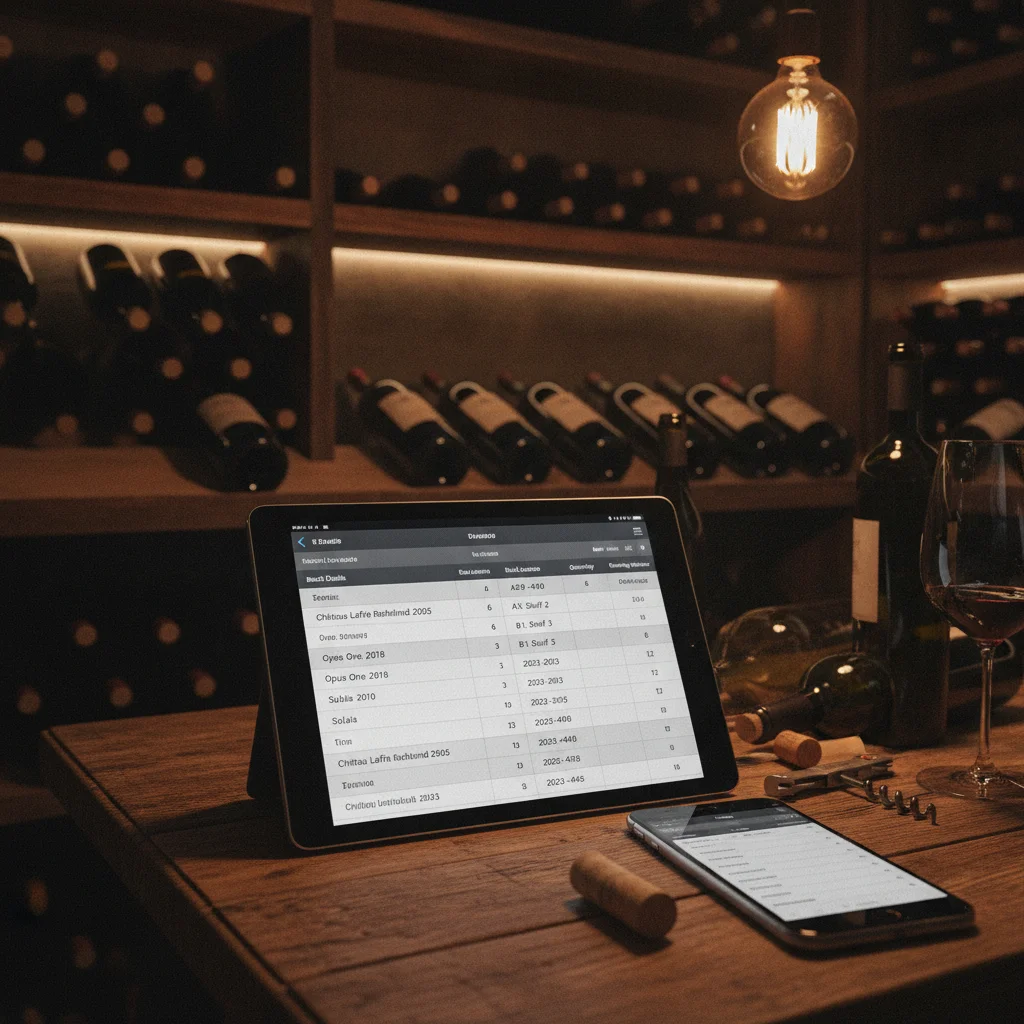
Definition: A wine cellar inventory template is a structured spreadsheet or document used to catalog wine bottles by producer, wine name, vintage, region, storage location, quantity, purchase details, and drinking window.
Try the wine cellar inventory template app on iPhone to scan a label and save the bottle.
What Is a Wine Cellar Inventory Template?
A wine cellar inventory template is a repeatable format for recording the identity, quantity, location, and status of bottles in a collection. It is usually created in Excel, Google Sheets, Numbers, or a printable document. Each row can represent one wine with a quantity field, or one specific bottle when provenance, purchase dates, and storage locations differ.
The template should answer four questions quickly: What wine do you have? How many bottles remain? Where are they stored? When should they be opened? DiVino, also known as Wine Identifier App, handles the same core tasks on iPhone while adding label scanning, cellar tracking, pairing guidance, drinking windows, menu scanning, and tasting notes.
A spreadsheet is often enough for a new or compact cellar. As a collection grows, the effort required to type labels, update quantities, and search inconsistent entries can make a dedicated app more practical.
Essential Wine Inventory Template Fields
Begin with fields that identify the wine and its physical location. Avoid combining several details in one cell because separate columns are easier to sort and filter.
- Inventory ID: A unique number or code for the entry.
- Producer: The winery, château, domaine, or brand.
- Wine name or cuvée: The specific bottling shown on the label.
- Vintage: The harvest year, or NV for non-vintage wine.
- Country and region: Include appellation when it helps distinguish the bottle.
- Grape or blend: Record the main variety or known blend.
- Wine type: Red, white, rosé, sparkling, sweet, or fortified.
- Bottle size: For example, 375 ml, 750 ml, or 1.5 L.
- Quantity: The number of bottles currently held.
- Storage location: Cellar, cabinet, rack, shelf, column, bin, or slot.
A useful location format is hierarchical, such as Cellar 1, Rack B, Column 3, Row 4. Consistent labels make it possible to retrieve a bottle without moving several others.
Purchase, Value, and Provenance Fields
Purchase records provide context for budgeting, insurance discussions, and provenance. They are especially helpful when the same wine was acquired in separate orders or stored in different places.
- Purchase date: When the bottle entered your collection.
- Seller or source: Retailer, winery, auction, restaurant, or gift.
- Purchase price: The amount paid per bottle, including currency.
- Estimated value: A separate, dated estimate rather than a replacement for purchase price.
- Receipt or reference: Invoice number, order number, or file name.
- Condition: Note label damage, fill level, capsule condition, or seepage.
- Storage history: Record known temperature-controlled storage or any uncertain period.
Do not treat a spreadsheet estimate as proof of authenticity or future investment value. Market prices vary by bottle condition, provenance, location, fees, and buyer demand. For insurance, sale, or authentication decisions, consult a qualified professional and retain original documentation.
Drinking Window and Tasting Note Fields
An inventory becomes more useful when it helps you choose what to drink, not just count bottles. Add fields for drink from, drink by, and priority. Drinking windows are estimates, so revise them after tasting a bottle from the same case or after receiving updated guidance.
- Drink from: The estimated start of a preferred drinking period.
- Drink by: The estimated end of that period.
- Serving guidance: Temperature, decanting time, or glassware.
- Food pairing: Dishes or ingredients that worked well.
- Tasting date: The date a bottle was opened.
- Tasting notes: Aroma, flavor, structure, development, and overall impression.
- Personal rating: Use one consistent scale across the collection.
Personal observations are often more useful than copying a critic's note because they reflect your palate and the condition of your bottles. Recording how a wine developed after opening can also guide decanting choices for the remaining bottles.
How to Set Up and Maintain the Spreadsheet
Create one header row and freeze it so field names remain visible. Use filters for producer, vintage, region, location, and drinking window. Dropdown lists can standardize repeated values such as wine type, country, and bottle status.
- Choose the row structure: Use one row per wine for simple quantity tracking, or one row per bottle for detailed provenance and movement history.
- Assign locations: Label physical racks before entering the collection.
- Enter bottles consistently: Follow the spelling printed on the label and keep producer and cuvée in separate fields.
- Record arrivals immediately: Add purchases before placing them in long-term storage.
- Record removals: Reduce quantity or mark the bottle consumed, gifted, sold, or moved.
- Audit regularly: Compare the file with the physical cellar and correct missing or misplaced bottles.
A simple copyable header is: Inventory ID, Producer, Wine, Vintage, Country, Region, Grape, Type, Bottle Size, Quantity, Location, Purchase Date, Seller, Purchase Price, Drink From, Drink By, Status, Tasting Notes.
When an App Replaces the Wine Spreadsheet
Spreadsheets are flexible, easy to share, and suitable when you enjoy controlling every field. Their weakness is manual maintenance. Typing label details takes time, bottle names may be entered inconsistently, and the file can become outdated when wine is removed without logging the change.
DiVino can replace much of this workflow for iPhone users. The app combines wine label identification with cellar tracking, so a bottle can be recognized and added without building every record from scratch. Pairing information, drinking windows, menu scanning, and tasting notes keep bottle selection and collection records in one place.
- Choose a spreadsheet if you have a small collection, need custom calculations, or prefer desktop data entry.
- Choose an app if you scan labels frequently, want faster search, or regularly use drinking and pairing information.
- Use both temporarily when migrating an established cellar, then verify bottle counts before retiring the old sheet.
DiVino is iPhone only. Android users can use AI Lens for visual wine searches, but DiVino should not be expected on Google Play. Whatever method you choose, accuracy still depends on recording purchases, movements, and consumed bottles at the time they occur.
Frequently asked
What should a wine cellar inventory include?
Include producer, wine name, vintage, region, grape, bottle size, quantity, storage location, purchase details, drinking window, status, and notes.
Should each bottle have its own spreadsheet row?
Use one row per bottle when provenance, price, condition, or location differs. One row per wine with a quantity field is simpler for uniform cases.
How should I label locations in a wine cellar?
Use a consistent hierarchy such as cellar, rack, column, row, and slot. Match those codes to physical labels on the racks.
How often should I update my wine inventory?
Update it whenever wine enters, leaves, or moves within the cellar. A periodic physical audit can catch forgotten changes.
Can a spreadsheet track wine drinking windows?
Yes, add separate Drink From and Drink By columns plus a priority field. Treat windows as estimates and revise them based on bottle development.
Is a wine cellar app better than Excel?
An app can reduce label entry and connect inventory with identification, pairings, and tasting notes. Excel remains useful for custom fields, formulas, and desktop control.
Is DiVino available for Android?
DiVino is iPhone only. Android users may use AI Lens for visual wine search.
Scan labels and track your cellar
Use Wine Identifier App by DiVino on iPhone to identify bottles, save notes, and organize your cellar. Drink responsibly and follow local alcohol laws.
Get Wine Identifier App