How To Scan Wine Labels For Sharper, Glare-Free Matches


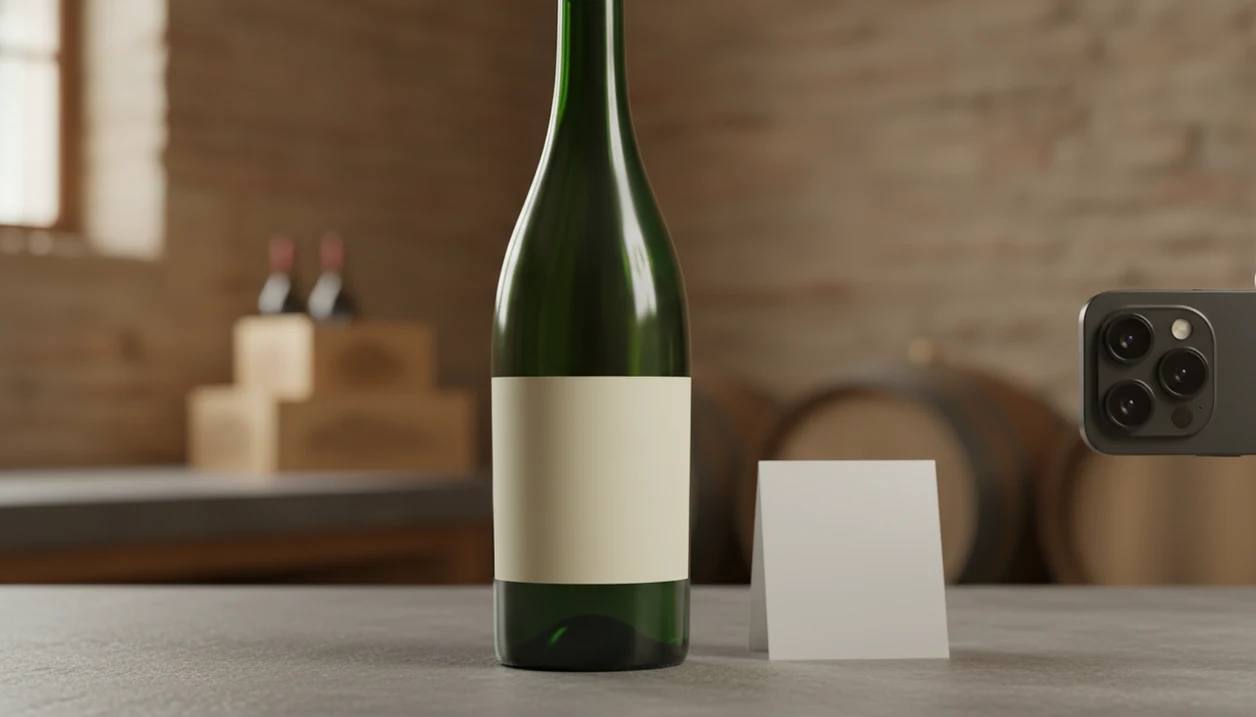
How to scan wine labels: hold your phone perpendicular to the bottle at mid-label height, use side lighting to eliminate glare, and fill most of the frame with the front label text. A second photo of the back label helps the AI confirm producer, region, vintage, and grape variety for a more accurate match.
> Scanning a wine label means using your phone camera to capture a sharp, glare-free image of the front and back label so an AI wine identifier app can read the text, match the bottle, and save it to your cellar.
- Hold your phone perpendicular to the bottle and fill the frame with the front label
- Use side lighting and tilt slightly to kill glare from curved glass or foil
- Capture the back label too, it carries producer, region, ABV, and sulfite details the AI needs
- Make sure the vintage year is visible and unobstructed in at least one photo
- Review the match in your app and correct any misread fields before saving to your cellar
Try the how to scan wine labels app on iPhone to scan a label and save the bottle.
What Counts As A Scannable Wine Label
A scannable wine label is one where the app can clearly read the main identity clues: producer, wine name, region, vintage, grape, and regulated back-label details. The front label usually carries the brand name, region, and sometimes the grape and vintage.
The back label matters more than people expect. In the United States, wine labels must show required details such as alcohol content, net contents, producer or bottler, sulfite declaration when applicable, and government warning language, according to the TTB source. That cream back label with tiny importer text is not decoration. It can separate two similar bottles from the same producer.
A standard 750 ml front label is often about 3.5 to 4 inches wide, which is a useful framing guide. Fill most of your screen, but don't cut the edges. The TTB reported more than 2.5 million wine label approvals from 2003 to 2023, so variety is the normal problem, not the exception source.
What You Need Before Scanning A Bottle Label
Before you scan bottle label text, set up the bottle like you would set up a simple document photo. A clean lens and soft side light usually matter more than a newer phone.
- Use a phone with a wiped camera lens, not one with pocket smudges from dinner.
- Open a wine identifier app first, such as [Wine Identifier App](), Vivino, Delectable, or CellarTracker.
- Choose soft, indirect light from a lamp or window, not a harsh overhead fluorescent.
- Put the bottle on a stable surface, or keep one free hand ready to tilt it.
- Remove shelf tags, price stickers, or plastic wrap so both labels are visible.
Good AI-powered wine identification and cellar management apps deliver readable bottle records and useful next-step suggestions, not mind-reading from a blurry photo.
How Wine Label Scanning Works Behind The Scenes
Wine label scanning works by sending your camera image to a recognition engine that reads text and compares the label design against known bottle records. Photo quality matters because both OCR and image matching need clean visual signals.
OCR means optical character recognition. In plain English, the app tries to turn label text into fields like producer, vintage, grape, and region. Image matching then compares shapes, fonts, crests, label colors, and layout against a database that may include millions of approved or submitted labels. If the phone is angled too far, curved glass stretches the edge text. Perpendicular framing reduces that warping.
The back label adds backup evidence. ABV, sulfite wording, importer name, and bottle size can help distinguish look-alike cuvées. Once matched, tools like Wine Identifier App can populate a cellar entry with wine name, vintage, region, and pairing suggestions. For a wider scan-focused overview, the wine label scanner guide covers the identification flow in more detail.
How To Scan Wine Labels Step By Step
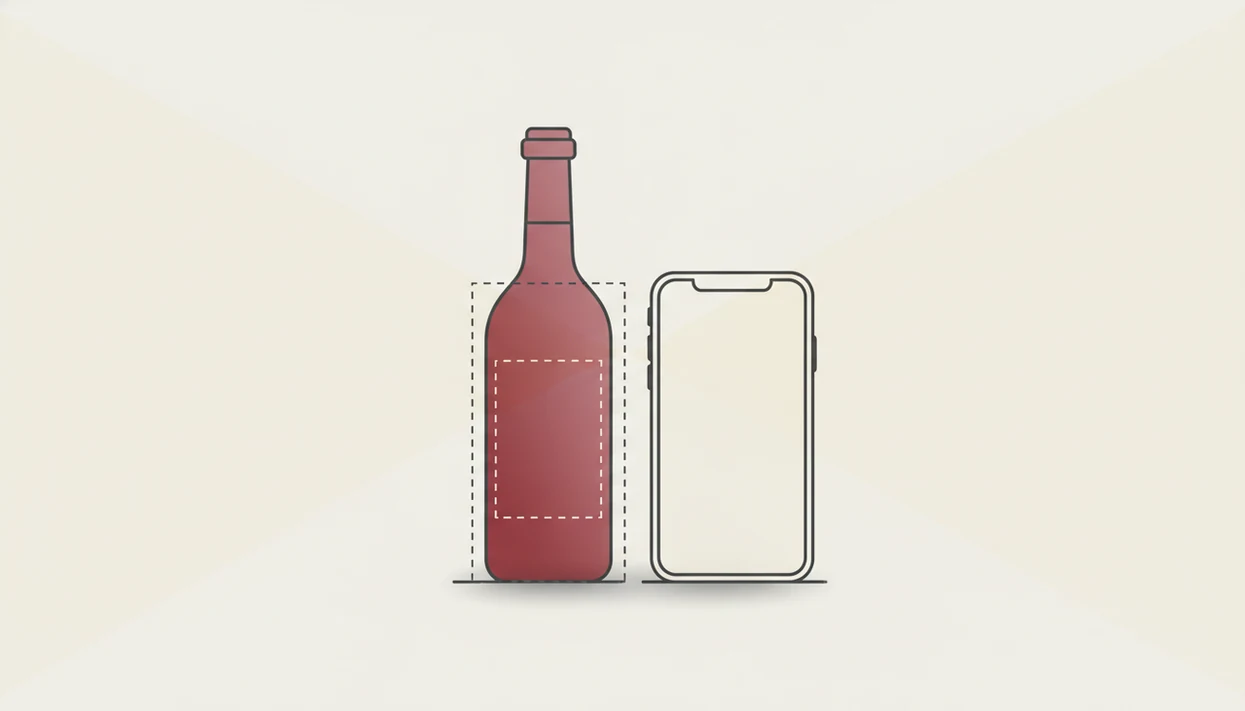
Use this scan routine when you want one clean bottle record instead of several blurry dinner-table photos.
- Open the app and tap scan.
- Position the bottle on a flat surface with light coming from the side.
- Hold your phone perpendicular at mid-label height and fill 70 to 80% of the frame with the front label.
- Tilt the phone or bottle 5 to 10 degrees to remove glare from glass, foil, or metallic ink.
- Capture the front label, then rotate the bottle and capture the back label.
- Review the AI match, then confirm vintage, producer, and region before saving to your cellar.
Position the Bottle and Light Source
Set the bottle on a counter and move the lamp to the side. At 10:40 p.m., with plates still out, this saves the “I liked the red one from dinner, but I have no idea what it was” problem.
Frame and Capture the Front Label
Keep the label square in the frame. For most users, a perpendicular front-label photo is more reliable than a stylish angled shot because OCR reads straight text more easily.
Flip and Scan the Back Label
Rotate the bottle slowly and capture the back label. Tap to focus if the importer text or ABV looks soft.
Review and Save the Match
Check before you favorite-it for next time. If the app returned a close sibling wine, adjust the fields before saving.
Common Wine Label Photo Mistakes That Kill Accuracy
The most common wine label photo mistakes are angle, glare, cropped edges, missing back labels, and hidden vintage years. Each one removes a clue the app needs.
Shooting from above or below bends the text across the curve of the bottle. Flash and direct overhead light create white hotspots, especially on black glass or glossy labels. Cropping is just as bad. A cut-off corner can remove the vintage year, producer name, or appellation.
Tiny miss, big consequence.
Skipping the back label is another quiet accuracy killer. ABV, region, sulfite declaration, and importer details often disambiguate wines that share the same front design. Don't assume AI can infer the vintage from context. It needs to see the printed year. Foil and metallic ink also need patience, so tilt slightly until the reflection moves away from the words.
If you are deciding between apps, the best wine identifier app guide explains which scan features matter most.
Tricky Labels: Foil, Dark Glass, And Tiny Text
Tricky labels need small adjustments, not a completely different method. Change the angle, light, or distance until the text looks readable before you press capture.
For foil, embossing, or red wax seal flakes on the counter, angle the phone 5 to 10 degrees off-axis so the reflection scatters. Dark glass with low-contrast printing needs brighter ambient light. Raising screen brightness can also help autofocus find the label edge.
Tiny back-label text is a closer-shot problem. Move in, tap the text block, and wait half a second before taking the photo. For oversized or wrap-around labels, take two overlapping photos instead of forcing everything into one frame. If the bottle uses a non-Latin script, check whether your app supports that language. Otherwise, enter the producer, region, or vintage manually.
How To Verify Your Wine Label Scan Is Correct
Verify a wine label scan by comparing the app's result against the physical bottle before you save it. Check producer name, vintage, region, ABV, and bottle size.
Vintage deserves special attention. For U.S. AVA wines, at least 85% of the wine must come from grapes harvested in the stated year, per TTB vintage-dating rules source. That is why one year can change the match.
Look at the back label for ABV and net contents, then check the app fields. If the wrong cuvée appears, edit the record or re-scan with less glare. For home storage, accurate first scans make a best wine cellar app much more useful later.
Limitations
Wine label scanning is helpful, but it cannot solve every bottle problem. Treat the app match as a strong starting point, not proof.
- Obscure producers and limited-release labels may not have enough reference data for a confident match.
- Heavy foil, embossing, and metallic ink can create glare no app fully corrects without user adjustment.
- Tiny back-label fonts may fail mobile OCR in low light.
- Labels from different countries may not list grape variety, vintage, or region in the same way.
- Cellar entries depend on scan quality, so mis-scanned bottles need manual correction.
- Very old vintages with stained, torn, or faded labels may be unreadable.
- AI cannot verify authenticity or detect counterfeit labels.
- A barcode half-covered by a thumb may not help, even if the front label looks fine.
If you need a simpler phone workflow beyond wine, the how to identify wine with phone guide explains the broader process. A scanner can help organize results, but the first photo still does the heavy lifting.
FAQ
Do I need to scan the back label?
Yes. The back label often carries producer, ABV, importer, sulfite, and region details that improve match accuracy.
Why does glare ruin my wine scan?
Glare reflects light from curved glass into the camera lens. It washes out the text OCR needs to read.
Can I scan a wine label from a photo?
Most wine apps can use gallery photos. The photo still needs sharp text, full label edges, and a visible vintage.
How close should I hold my phone?
Fill about 70 to 80% of the frame with the label. On many phones, that is roughly 4 to 8 inches away.
Does the vintage year affect the match?
Yes. Vintage separates different releases from the same producer, so the printed year should be visible.
What if my wine has no back label?
The front label can still match, but confidence may be lower. Manually check producer, region, grape, and vintage before saving.
Can I scan wine labels on iPhone?
Yes. Use the iPhone camera through Wine Identifier App or another scanner, and tap the label text to focus.
Why did the app match the wrong wine?
Common causes include cropped label edges, glare, missing vintage, or a very similar sister cuvée from the same producer. Re-scan both labels and correct the fields before saving.