What Happens When You Scan a Wine Label in an App


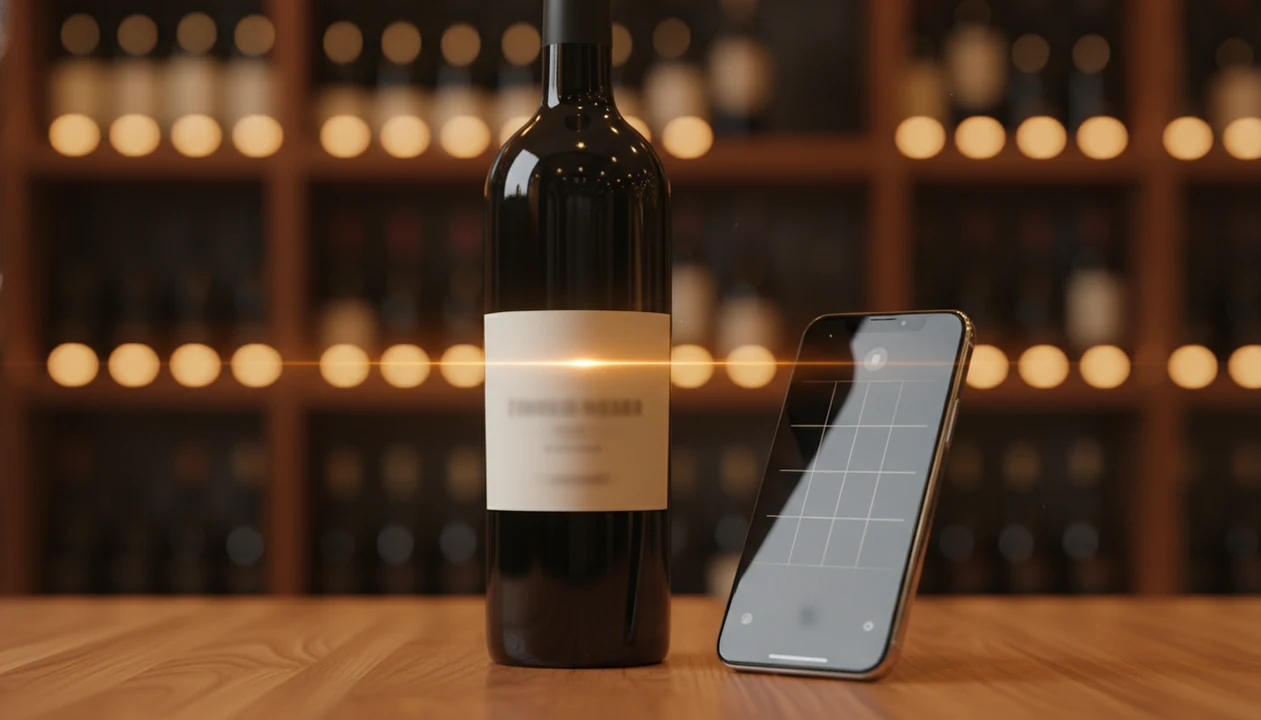
In short, what happens when you scan wine label is that the app captures the bottle image, reads the label with OCR and visual matching, then compares the extracted winery, vintage, region, and design cues against a wine database. Within seconds, it can return the identified wine, ratings, tasting notes, food pairings, price data, and a saved cellar or diary entry.
> Wine label scanning is the process by which a mobile app uses computer vision and OCR to photograph a wine bottle, extract structured text and design data from the label, and match it to a database entry that returns identification, ratings, and pairing information.
- Your phone camera captures the label image, then computer vision crops, de-skews, and enhances it for reading.
- OCR and logo recognition extract winery name, grape, region, and vintage as structured data sent to a matching engine.
- The app returns the identified wine plus tasting notes, ratings, food pairings, and saves the scan to your cellar or wine diary.
Try the what happens when you scan wine label app on iPhone to scan a label and save the bottle.
What Wine Label Scanning Means: A Definition
Wine label scanning is a camera-to-database pipeline: your phone photographs the bottle, the app reads the visible label data, and a matching system compares it with known wine records. The core parts are OCR, image recognition, and database matching.
That sounds technical, but the use case is plain. You’re standing near a shelf, or holding a bottle after dinner, and you want the name before it disappears into the camera roll. In an international wine consumer survey, 58% reported using smartphones in wine shopping situations, including searching, comparing, or recording wines source.
The scan is only the start. A good match can lead to identification, pairing ideas, tasting notes, ratings, and a cellar record you can find later.
Save it before you forget.
Requirements Before You Scan a Wine Label
You need four things before scanning a wine label: a phone camera, an updated wine identifier app, enough light, and a label the camera can actually see. Most scan failures start with glare, blur, or a thumb covering the vintage.
Use a smartphone with a clean lens and a working camera. Install a current app, since wine databases and recognition models change often. If you’re comparing tools, a wine label scanner guide can help you understand what features matter before you install one.
Light matters more than people expect. Restaurant candlelight on cursive script can fool OCR, and curved glass throws foil glare straight into the lens. Put the bottle against a steady surface if your hand is shaky. I’ve had better results leaning the bottle near a window than hovering over it at arm’s length.
How Wine Label Recognition Works Behind the Scenes
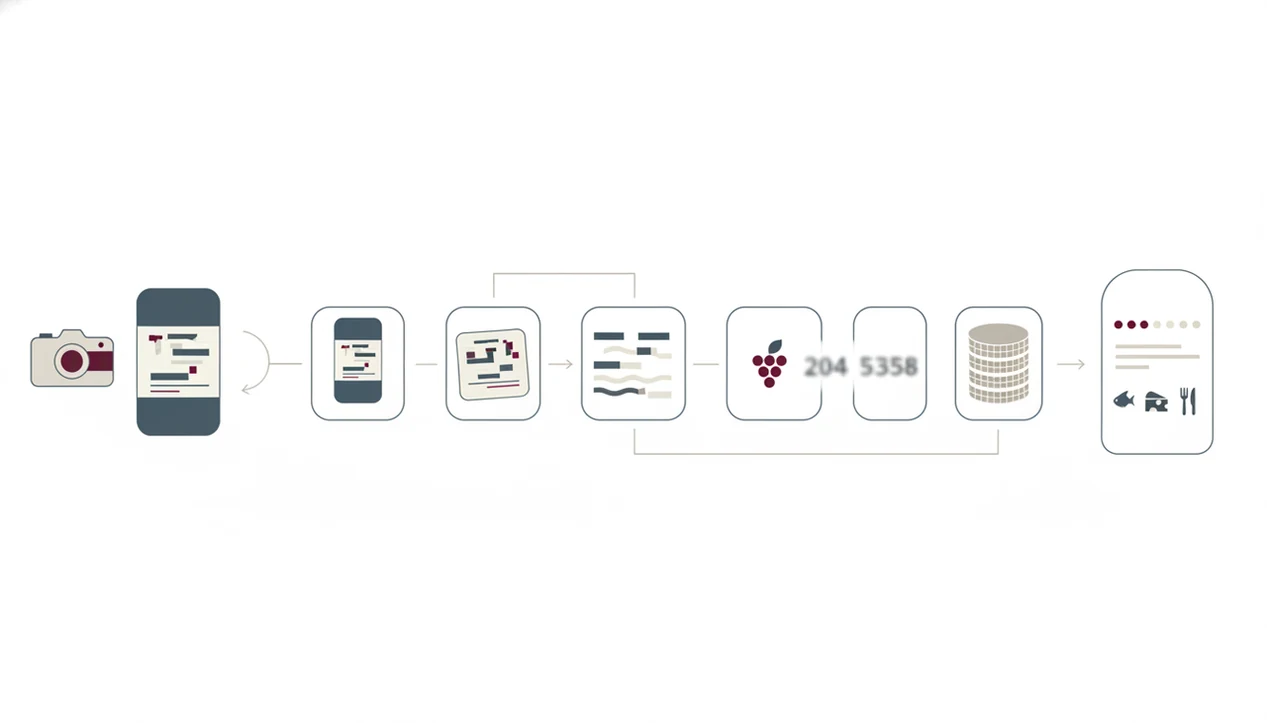
Wine label recognition works by turning a photo into structured clues, then comparing those clues with known bottle records. The app does not “see wine” like a person; it measures text, shapes, logos, and image embeddings.
- The camera captures the label, then pre-processing crops the bottle, de-skews the label, and boosts contrast.
- The wine OCR process extracts text fields such as winery, cuvée name, region, grape, and vintage.
- Logo detection and image embeddings help match labels when text is tiny, decorative, or partly hidden.
- Fuzzy matching and confidence thresholds decide whether the app shows one result, alternatives, or a manual search box.
- Visual AI is mature enough for consumer scanning because computer vision has expanded across many industries, as McKinsey explains in its overview of the field source.
Image Capture and Pre-Processing
First, the app cleans up the image. A stained vintage year or cream back label with tiny importer text may need cropping and contrast before OCR can read it.
Wine OCR Process and Visual Matching
Next, OCR reads the label text, while visual matching checks design cues. NIST's OCR research notes that recognition performance depends heavily on image quality, fonts, noise, and segmentation; on wine bottles, curved glass, glare, and decorative typefaces are the practical failure points (NIST).
Step-by-Step: How to Scan a Wine Label in an App
To scan a wine label, open the app, frame the label clearly, wait for the match, then save the useful details. The whole flow should take less time than typing the producer name by hand.
- Open the wine identifier app and tap the scan or camera button.
- Center the wine label in the frame under good lighting.
- Hold steady while the app captures and processes the image.
- Review the matched wine result, including name, vintage, and any confidence indicator.
- Explore tasting notes, ratings, food pairings, and price data.
- Save the scan to your cellar or wine diary for future tracking.
At 10:40 p.m. on a kitchen counter, with plates still out, no one wants to spell the producer name from memory. That is where scanning helps. For a broader phone workflow, the how to identify wine with phone guide covers bottle photos, menus, and manual lookup.
Label Recognition Steps After the Match Is Found
After the match is found, the app enriches the result with wine information that is easier to read than the label itself. That usually includes grape variety, region, tasting notes, ratings, pairing suggestions, and sometimes price comparisons.
The pairing layer often uses style metrics. Body, acidity, tannin, sweetness, and alcohol help explain why one red works with a pizza box open near wine glasses, while another feels better with roast chicken. Predicted style metrics may come from database records, community notes, producer data, and model inference.
Tools like Wine Identifier App can also connect the scan to saved notes and cellar tracking after the bottle is identified. Good AI-powered wine identification and cellar management apps deliver label lookup, pairing context, and bottle records, not mind-reading taste predictions.
In DiVino, the useful handoff is scan-to-record: the match should become a saved bottle with editable vintage, location, rating, and note fields rather than a one-off result. If DiVino is unsure, the safer UX is to show alternatives or ask for a missing producer or vintage instead of pretending the match is certain.
How Each Scan Updates Your Wine Cellar Record
Each scan can create a wine diary entry or cellar inventory record, but the record is only as accurate as the details you keep updated. The app may identify the bottle automatically; it cannot know you opened the last one unless you tell it.
Typical editable fields include quantity, storage location, purchase date, personal rating, and a quick tasting note. If you store bottles in two places, label the locations simply: kitchen rack, basement left shelf, fridge door. Fancy names don’t help at 6 p.m.
Over time, cumulative scan data can improve recommendations because the app sees what you save, rate, and repeat. For home inventory planning, a best wine cellar app comparison is useful once you care about drinking windows, bottle counts, and location tracking.
Manual updates still matter.
Common Myths About Scanning Wine Labels
Scanning a wine label identifies a likely bottle; it does not magically know your palate, verify authenticity, or import every review ever written. Expectations matter because the scan feels instant.
Myth one: the app reads your taste and perfectly predicts preference. Reality: it surfaces crowdsourced, expert, and historical data, then learns from what you save or rate.
Myth two: any blurry photo will return the exact wine. Reality: low light, glare, partial labels, and crossed-out restaurant vintages can produce weak matches.
Myth three: scanning verifies authenticity. Reality: consumer apps match the label image and text, not the liquid inside the bottle.
Myth four: every professional review appears automatically. Reality: Vivino, Delectable, CellarTracker, and Wine Identifier App each have different database coverage, partner reviews, cellar tools, and community notes, so compare database depth rather than camera speed alone. If your real question is what app identifies wine bottles, compare database depth, not just camera speed.
5 Must-Know Facts About the Wine OCR Process
- OCR is strongest on clean, flat, well-lit printed labels and weaker on curved glass, reflective foil, dark cellars, and low-contrast designs.
- Modern wine apps combine text OCR with logo detection and image embeddings to improve match rates when the words alone are not enough.
- Multilingual labels in French, Italian, German, Spanish, and other languages need language-aware OCR models and wine-specific vocabulary.
- Confidence scores determine whether the app shows a match, suggests alternatives, or asks you to type missing details.
- Each scan generates structured metadata, such as winery, region, vintage, grape, producer, and bottle image, for future retrieval.
This is why the back label can be worth photographing too. Tiny importer text may separate two similar bottlings when the front label looks nearly identical.
Common Mistakes That Make Wine Label Scans Fail
Most failed wine label scans come from a photo that hides the exact clues the app needs: producer, vintage, region, or a clean design match. Fix the image first, then decide whether camera scanning is still the fastest route.
- Move the bottle away from foil glare, bright pendants, or restaurant spotlights before you scan. Curved glass can bounce light into the lens, so a slight angle often works better than a straight-on flash photo.
- Include the full producer name and vintage in the frame. A cropped estate name or a year tucked under a thumb can make two different bottles look like the same wine.
- Scan the back label when the front labels are nearly identical. Importer text, appellation details, alcohol level, or bottling notes can separate sibling cuvées.
- Switch to manual search when two or three cleaner photos still return weak matches. Type the producer plus one extra clue, such as region, grape, or vintage.
- Review privacy settings before saving cellar location, home rack names, purchase notes, or restaurant details. Useful records should not expose more personal context than you meant to keep.
Limitations
Wine label scanning is useful, but it has real limits. The app is reading a photograph and matching records, not inspecting the bottle like a lab or checking your personal memory.
- OCR struggles with reflective foil, dark cellars, handwritten labels, damaged labels, and strongly curved bottles.
- Small-production, newly released, private-label, or under-represented wines may return incomplete, generic, or missing results.
- Tasting notes and quality scores are aggregate data, so they may not match what you taste with supermarket goat cheese or tomato pasta.
- Cellar accuracy depends on logging purchases, gifts, opened bottles, and bottles moved between racks.
- Privacy policies vary; scans, ratings, locations, and tasting notes may be used for recommendations, analytics, or model training.
- Price data can be stale or regional, especially for older vintages and limited allocations.
- Consumer scans do not authenticate wine or detect counterfeits.
That last point matters. If provenance is financially important, use a specialist, not a scan result.
FAQ
Does scanning a wine label cost money?
Most wine identifier apps offer some free scans, with optional paid tiers for features like deeper ratings, cellar tools, or unlimited history. Wine Identifier App may include free and premium features depending on the version offered.
Can I scan a wine label offline?
Most wine label scanning needs internet access because the app must query a live wine database. Some apps may cache limited recent scans or saved cellar records.
How accurate is wine label OCR?
Wine label OCR is most accurate on clean, flat, well-lit printed labels. Accuracy drops on curved bottles, foil glare, handwriting, damaged labels, and low-light images.
Does scanning verify wine authenticity?
No. Consumer wine scanning apps match the label data and image against a database, but they do not verify the liquid inside the bottle or reliably detect counterfeits.
Can I scan a wine menu instead of a bottle label?
Many apps can scan printed wine lists or restaurant menus as well as bottle labels. Menu scanning may be less precise when vintages are missing or producers are abbreviated.
What data is saved after a wine label scan?
A saved scan usually includes wine name, vintage, region, grape, bottle image, user rating, tasting notes, and cellar location. In Wine Identifier App, saved scans can support bottle memory and cellar tracking.
Why does my wine label scan return no match?
A scan may fail because the image is blurry, the label has glare, the vintage is hidden, the producer is obscure, or the wine is not yet in the database. Try a brighter photo and include the full front label.
Is my wine scan data shared or private?
Privacy policies vary by app. Scans, ratings, tasting notes, and location-related data may be used for recommendations, analytics, or AI training, so review the policy before saving sensitive cellar details.