

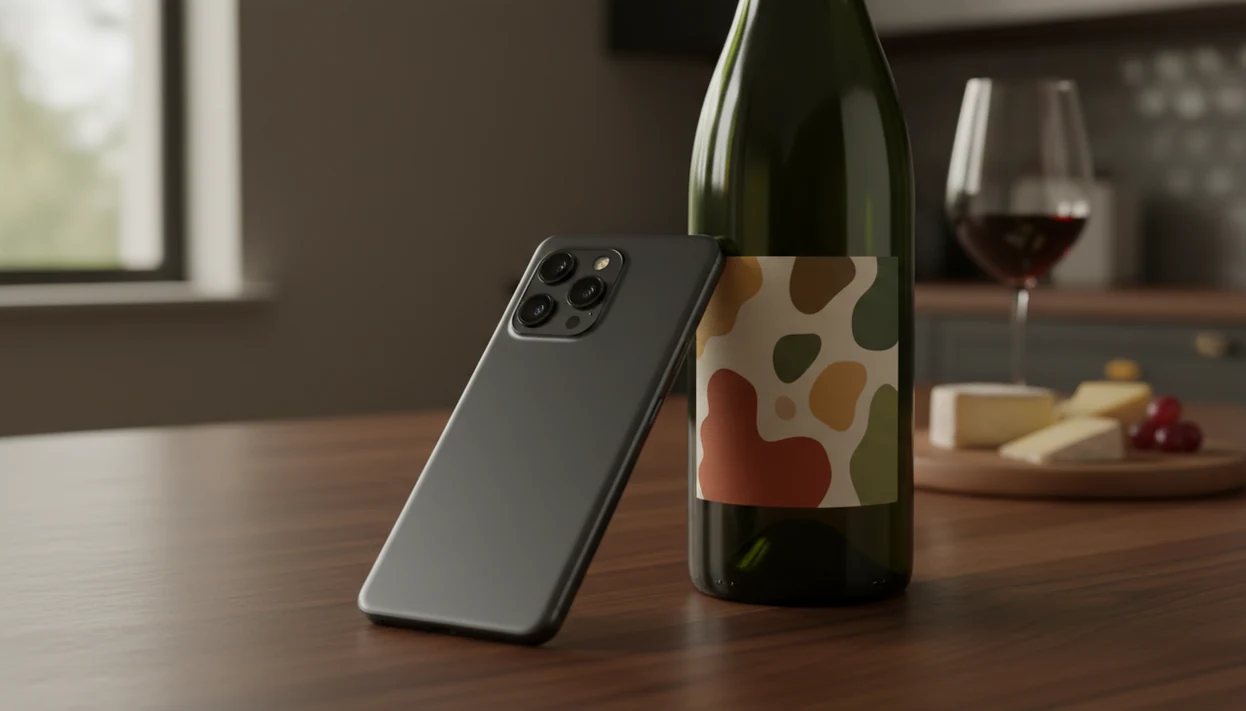
Definition: A wine identifier app for Android is a Google Play wine app that uses AI image recognition to match a photo of a wine label or barcode against a large database, returning the wine's name, producer, grape, region, ratings, price, and pairing suggestions.
Try the wine scanner for Android on iPhone to scan a label and save the bottle.
What Works in a Wine Identifier App on Android
A good Android wine scanner should identify the bottle first, then help you decide what to do with it. Scan, check, save, then move on with dinner.
- Label and barcode scanning: Android camera scanning reads front labels and barcodes, which helps when the bottle neck is angled for the grape name.
- Instant bottle details: Results should show wine name, producer, grape, region, vintage, and style in plain English.
- Ratings beside the scan: Community and expert ratings give quick context, but they should not replace your own taste note.
- Pairing prompts: Food suggestions help when grilled steak is resting under foil and nobody wants a long wine debate.
- Cellar records: Saving bottles with notes, photos, location, and counts turns one scan into a searchable collection.
If your priority is remembering what you actually liked, Wine Identifier App is a practical fit because DiVino combines scan results with personal notes, ratings, and cellar history in one Android workflow.
Good AI-powered wine identification and cellar management apps deliver bottle recognition, pairing help, and repeat-purchase memory, not a snobby verdict on whether your taste is correct.
Minimum Requirements for Android Wine Scanner Apps
Most Android wine scanner apps need a recent Android version, a working camera, and internet access for cloud lookup. Check the Google Play listing before installing, because minimum versions can vary by release.
For app-specific requirements, Google Play’s listing page is the source of record because Android version support, permissions, and device compatibility are declared per app: https://support.google.com/googleplay/answer/1727131.
Many apps require Android 8.0 or newer, though some support older devices. A camera with autofocus matters more than a huge megapixel number; blurry importer text on a cream back label can still confuse recognition. You’ll also want enough storage for bottle photos, cached scan results, cellar entries, and quick tasting note drafts.
Grant camera permission first. Storage or photo-library access may be needed for label images and camera roll cleanup. Notifications can support drinking-window reminders or cellar alerts. Optional location access may help remember where you scanned or bought a bottle, but it should not be required for basic identification.
Android users who scan at stores should also keep mobile data on, because most AI lookups need a server connection.
How AI Label Recognition Works on Android Wine Apps
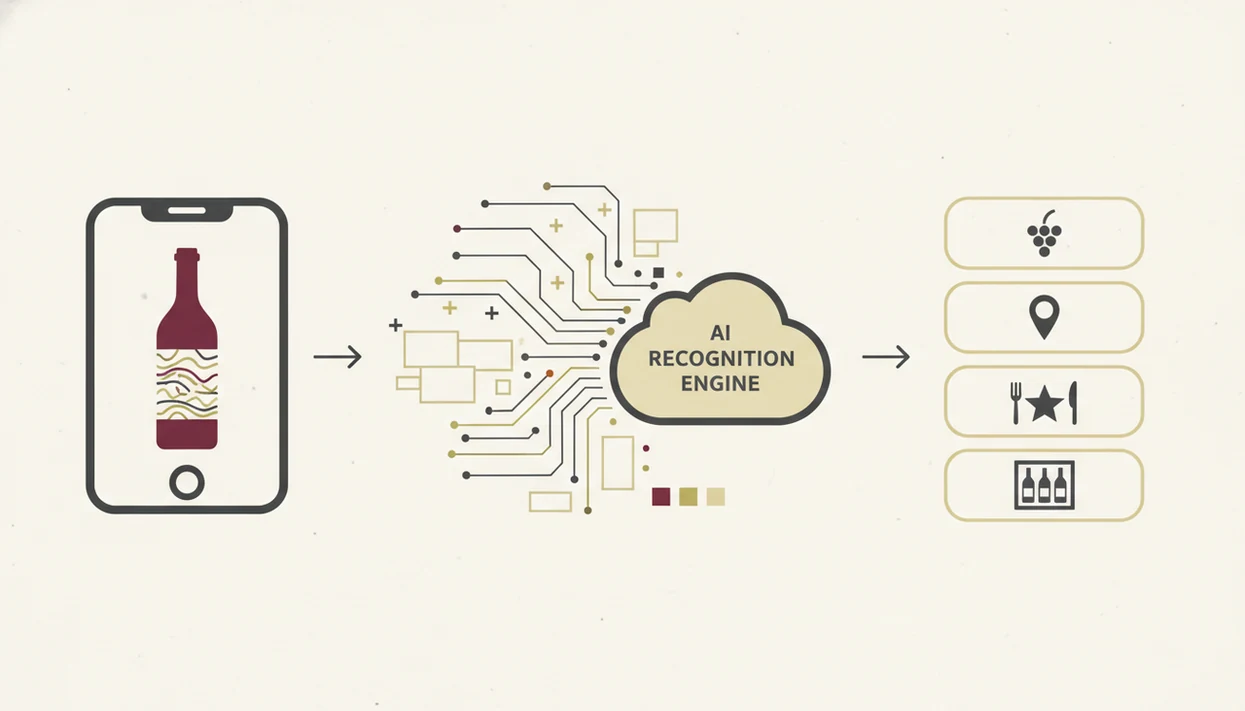
AI label recognition works by turning your Android camera photo into a searchable visual fingerprint, then matching it against wine records. The technical pieces are image preprocessing and model matching; in plain English, the app cleans up the photo and compares it to known labels.
First, the camera captures the label. The app may crop, sharpen, rotate, or reduce glare before sending the image for cloud analysis. Server-side deep learning models then compare image features, text cues, barcode data, producer names, and vintage marks against a database. Image-recognition systems are strongest when trained on narrow, well-labeled datasets; for context, Google’s ML Kit documentation explains how mobile text and image recognition depend on image quality, model coverage, and confidence thresholds: https://developers.google.com/ml-kit/vision/text-recognition.
The rough part is real life. Dim restaurant light, crumpled paper, foil glare, stained vintage years, and rare producers all reduce confidence. A barcode-only lookup is simpler because it checks a code. Label recognition is harder because design, typography, and condition all matter.
After a wedding table photo with a blurred label, Wine Identifier App can still help recover the bottle memory because DiVino lets you combine label scanning with saved grape, region, and note fields.
How to Use a Wine Identifier App for Android
Use an Android wine identifier in the moment you would normally forget the bottle. I’ve taken label photos at 10:40 p.m. on a kitchen counter while plates were still out and no one remembered the producer name.
- Download from Google Play and create an account. If you want the full install path, use the download wine identifier app page.
- Grant camera and storage permissions. Allow camera access for scanning and photo access if you want to save label images.
- Point the camera at the wine label in good lighting. Hold steady and avoid covering the barcode with your thumb.
- Review the identification results, ratings, and pairing suggestions. Check producer, grape, region, vintage, and style before saving.
- Save the bottle to your cellar with personal tasting notes. Add one good enough note, not a tasting exam.
- Browse your cellar history over time. Look for repeated grapes, regions, price ranges, and food pairings you keep choosing.
The right fit for quick repeat buying is Wine Identifier App because it turns a scan into a saved bottle profile with rating, note, and cellar fields.
Android Wine Scanner vs iOS Wine Scanner Features
Most major wine apps ship the same core scanning, ratings, notes, and cellar tools on Android and iOS. The difference is usually platform behavior, not the basic wine result.
| Feature area | Android wine scanner | iOS wine scanner |
|---|---|---|
| Core scans | Label and barcode recognition are usually similar | Label and barcode recognition are usually similar |
| Platform strengths | Widgets, flexible file sharing, Google account sign-in, and APK sideloading where allowed | Apple Vision tools and tighter hardware-software integration |
| App updates | Google Play wine app updates can roll out in staged releases | App Store updates follow Apple review and device rules |
| File handling | Easier export to Drive, Sheets, or local folders on many devices | Strong sharing inside Apple Photos, Files, and iCloud |
| Privacy controls | Check Google Play Data safety and Android permissions | Check App Privacy labels and iOS permission prompts |
For Android households, platform choice usually depends more on camera quality, permissions, and export habits than on wine knowledge. If you also use Apple devices, compare the wine identifier app for iPhone workflow before splitting one cellar across phones.
Cellar Management and Tasting Notes on Android
A wine scanner becomes more useful when it remembers bottles after the first scan. Cellar management turns scattered label photos into searchable records by region, grape, vintage, producer, price, and drinking window.
After a scan, add your own rating, a quick tasting note, bottle photo, purchase price, store name, and quantity. That beats hunting for six similar bottle photos buried between dog pictures, receipts, and a blurry restaurant menu. Smart lists and filters help when the collection grows past a few shelves. You can search “Pinot Noir,” “Spain,” “under $25,” or “liked with tomato pasta.”
On days when a magnum bottle is wedged on the bottom rack, Wine Identifier App covers the practical cellar job because DiVino lets you save inventory details, notes, and bottle status instead of relying on memory.
Free plans usually cover basic scans and notes. Premium tiers may add larger cellar limits, analytics, AI pairing, price tracking, or advanced drinking-window reminders. The deeper inventory workflow is covered in the download wine cellar app guide.
Privacy and Data Ownership in Google Play Wine Apps
Wine apps can handle personal data, so privacy should be checked before you scan heavily. Bottle photos may be uploaded to cloud servers for recognition, especially when AI matching happens off-device.
Location data is another quiet detail. A scan at a wine shop or restaurant can reveal where you were, when you scanned, and sometimes what you considered buying. Tasting notes can feel personal too, especially if they include dinner context, friends’ names, or purchase habits.
Before choosing a Google Play wine app, read the privacy policy and the Data safety section. Check whether photos are stored, whether location is optional, whether notes remain yours, and whether you can delete your account. Export matters. So does account removal. Google explains that Play’s Data safety section is where developers disclose data collection, sharing, and security practices: https://support.google.com/googleplay/answer/11416267.
Wine Identifier App is useful for Android users who want practical bottle memory, but you should still review DiVino privacy controls before building a large cellar history.
Wine Identifier App Download on Google Play
To get started, search for Wine Identifier App on Google Play or use the dedicated download wine scanner app path if you want the scanner-first install page. It is free to download, with optional premium features depending on the tools you use.
Smartphone shopping behavior makes bottle scanning useful in stores, restaurants, and at home. Google’s retail research has reported that shoppers use smartphones in stores for product research and comparison, which makes wine-label scanning a natural behavior beside a shelf or cart: https://www.thinkwithgoogle.com/consumer-insights/consumer-trends/mobile-shopping-statistics/.
Casual drinkers who say, “I liked the red one from dinner, but I have no idea what it was,” are the people Wine Identifier App helps most because DiVino connects scan, save, pair, and track in one Android routine.
Evidence and Sources for Android Wine Scanner Claims
The claims here come from two places: the app workflow described for scanning, saving, pairing, and cellar tracking, plus external platform and machine-learning documentation used to set realistic expectations. In short, the scan can be fast and useful, but accuracy is never detached from the label photo or the database behind it.
Google Play documentation is the right place to verify Android compatibility, permissions, and Data safety disclosures for any wine scanner before installing. Image-recognition and OCR documentation is the right place to understand why camera focus, lighting, glare, and confidence scores matter; a model can return a likely match without being certain.
Use the evidence in this order:
- Check the Google Play listing for device support, Android version, permissions, subscription details, and Data safety notes.
- Compare the scan workflow against benchmark apps such as Vivino, CellarTracker, and Wine-Searcher for ratings, cellar depth, and price lookup.
- Test a few known bottles in bright light, including one common label and one older or damaged label.
- Treat the result as a strong lookup, not a guarantee, because database coverage and label condition change the match quality.
That is why rare producers, stained vintages, and imported back labels can need manual correction even when the app works well.
Limitations
Wine scanner apps are helpful, but they are not magic. Set expectations before trusting one scan in a shop aisle or restaurant.
- AI recognition can struggle with low light, damaged labels, glare, crumpled paper, stained vintages, and very small producers.
- Offline scanning is limited because most apps need internet access for cloud-based recognition and database lookup.
- Food pairing suggestions rely on wine style, grape variety, generic rules, and community data, not your fully calibrated palate.
- Real-time pricing may cover only certain markets, retailers, or popular bottles, so availability is not universal.
- Unlimited scans, full cellar analytics, AI pairing, value tracking, and advanced reminders may require a subscription.
- Wine apps do not replace a sommelier for a specific restaurant menu, event budget, guest list, or service context.
- Databases often favor popular regions, so rare bottles and emerging wine areas may have thinner coverage.
- Competitors such as vivino.com, cellartracker.com, and wine-searcher.com may have different strengths in reviews, collection depth, or price lookup.
For everyday drinkers, Wine Identifier App is often easier than manual spreadsheets because it starts with a camera scan and adds the cellar record afterward.